Guide
Reading on a Galaxy Z Fold: EPUB and PDF as facing pages
Unfold a Galaxy Z Fold and you are holding something very close to an open paperback. A phone page stretched across a fold is not a book. Tomelet gives you one: two facing pages, the crease as the spine, and your place kept every time you close it. Here’s how it works, and the few settings worth knowing.
Free on Google Play, with no account.
Unfold, and the book opens
Get Tomelet from Google Play, open a book and unfold the phone. That’s the whole setup.
An EPUB lays itself out as two pages side by side, paired the way a printed book pairs them: the first page alone, then two at a time. The pages meet at the fold, exactly where a printed book is bound, so no line of text runs across the crease and no button sits on it.
Change the type size and the text flows into new pages. The fold stays the spine.
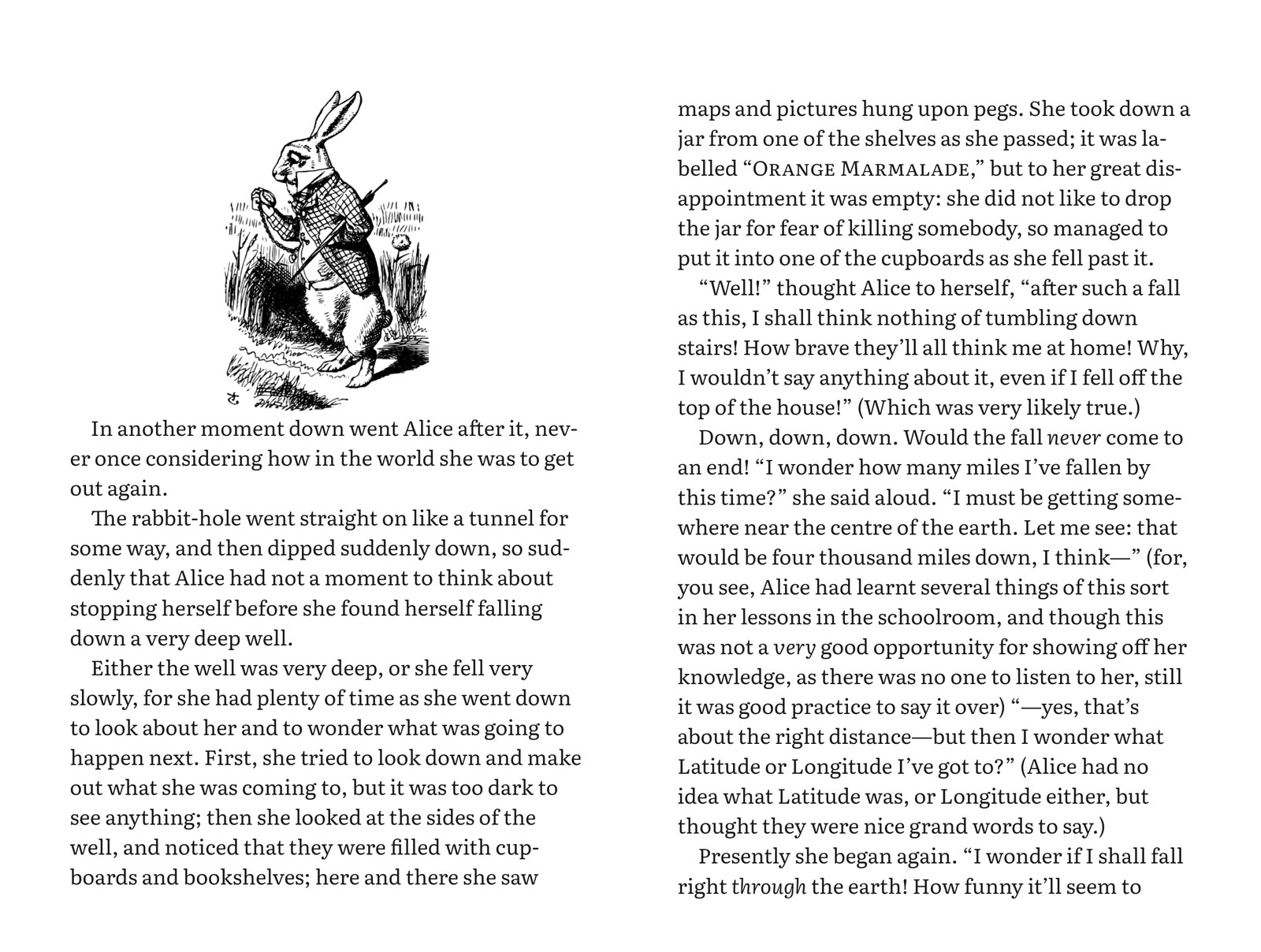
Every kind of book, as a spread
Novels and other EPUBs
They open as two pages on their own.
Fixed-layout EPUBs
Picture books, cookbooks and textbooks designed page by page open as the publisher laid them out. A page the publisher placed on the left stays on the left, and the authored page is never reflowed.
Comics
Comics open as spreads too. If a spread looks one page off, Shift pages by one pairs the cover with the next page. A spread printed as one wide image can be shown as is, split or rotated, under Wide pages.
PDFs
A PDF keeps its own Page layout setting, because a PDF is often read by scrolling. Choose Facing pages and you get the cover alone, then pairs, turned one spread at a time. Scrolling and Page by page are still there when you want them.
Your call, per book
Open the appearance controls and Page spread offers three choices for each book. The choice belongs to that book on this phone. It doesn’t sync, so your Fold can read a novel as a spread while your other devices keep their own layout. A PDF keeps its own Page layout choice.
Automatic
Shows two pages when two fit comfortably and one when they don’t.
Single page
Keeps one page, however wide the screen.
Facing pages
Shows two pages wherever they fit.
Right to left, and top to bottom
A spread follows the book’s own page direction. Arabic and Hebrew books, and vertical Japanese books, start on the right-hand page and turn leftwards, the way they are printed.
For a comic, the Manga (right to left) switch turns that book’s pages right to left on this device.
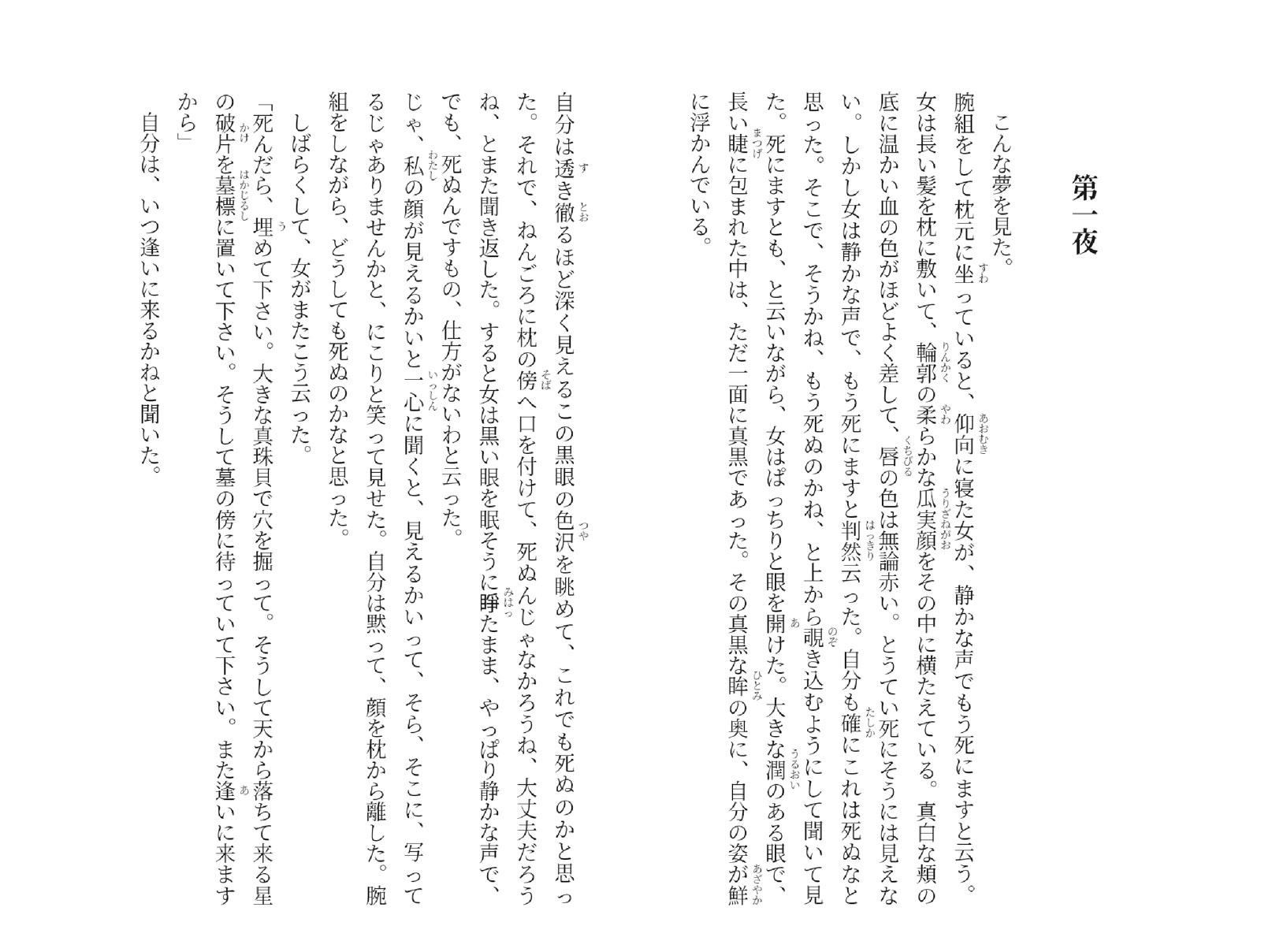
Fold it shut mid-sentence
Close the phone and the page you were on carries on, as a single page, on the cover screen. Unfold it and the same place opens as two pages again.
Nothing reloads and nothing jumps. Tomelet remembers your place by its position in the text, not by page number, because the page count changes whenever the screen does. Highlights, notes and pen ink stay on the words they belong to. A toolbar you had open, or a note you were halfway through typing, is still there. Folding never takes you out of the book, so it never brings up an ad either.
Whether an app carries on to the cover screen when you fold is a setting on the phone. Tomelet follows it.
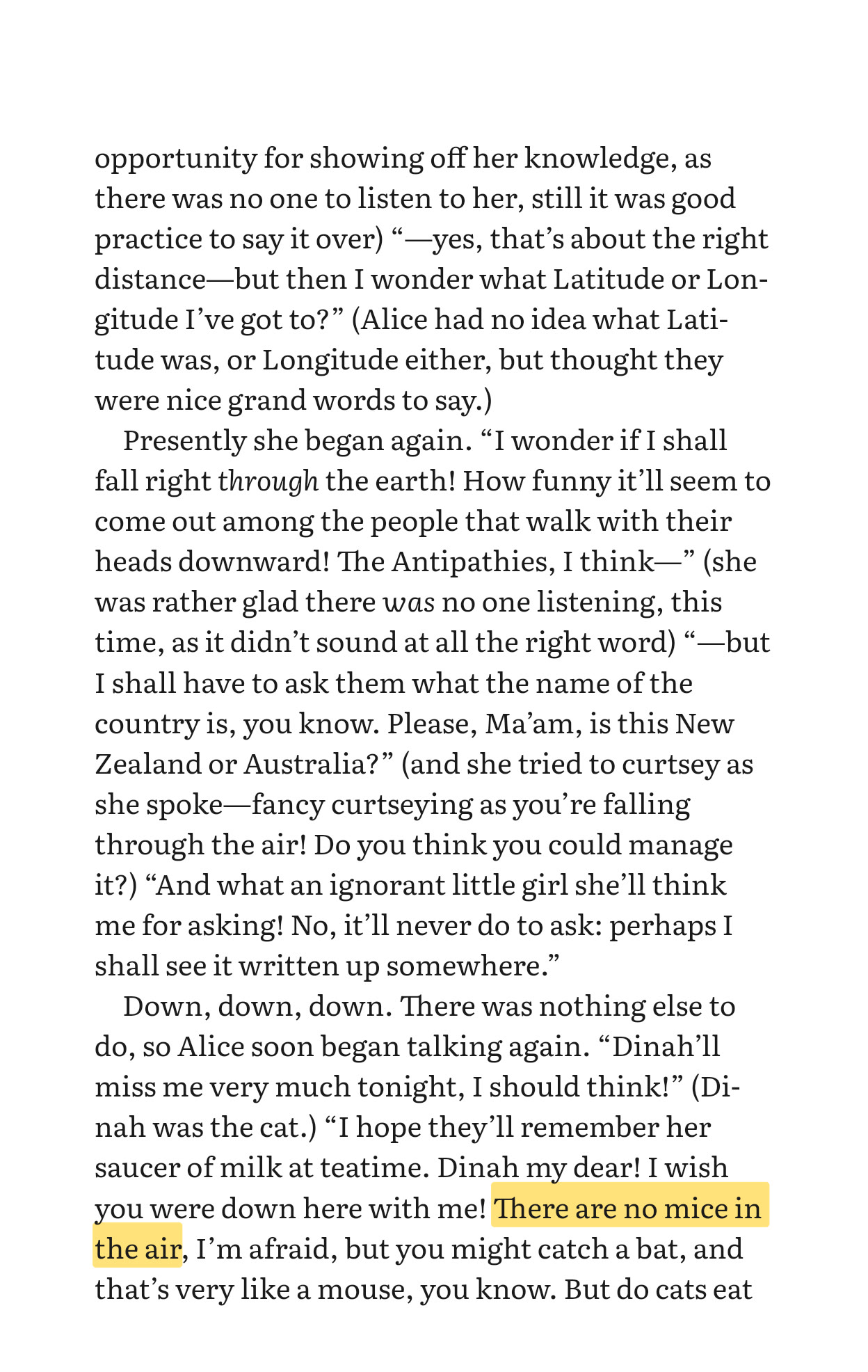
Half open: held like a book, or set on a table
On Android, when the phone reports that it is half open, Tomelet rearranges the screen around the fold.
Held like a book
With an Android foldable half open and the fold upright between your hands, you keep one page on each side of the fold, and the reading controls stay on the outer edges, off the crease.
Set on a table
With an Android foldable half open on a table and the fold running across, the page moves to the upper half and the reading controls to the lower half: the page slider, contents, bookmarks and notes, and the appearance panel. Turning pages, selecting text and drawing on the upper half work just as they do on a phone.
Next to another app
Run Tomelet in split screen and it shows one page, and makes no guess about where the fold is.
Free to read. Pay for sync.
The reader is free and needs no account. That’s the complete reader, not a trial: every format, highlights, notes, bookmarks and pen ink, export as Markdown or JSON, and facing pages on your Fold. It’s supported by one skippable ad before a book opens, never while you read.
Tomelet Sync (US$9.99 a month after a 14-day free trial) adds end-to-end encrypted sync of your books, places, highlights, notes and ink across your devices, and removes the ads. Your library is encrypted on the device before it’s uploaded, with keys only your devices hold, so the server stores what it can’t read.
FAQ
Questions & answers
Does Tomelet show two pages on a Galaxy Z Fold?
Yes. On the unfolded inner display Tomelet shows facing pages with the fold as the spine for EPUB, fixed-layout EPUB and comics. For a PDF, choose Facing pages in Page layout. You can switch any book back to one page.
What happens when I fold the phone while reading?
If your phone is set to continue apps on the cover screen, the page you were on carries on there as a single page, and unfolding restores the spread at the same place. Highlights, notes and pen ink stay where you put them.
Do right-to-left and vertical books open the right way?
Yes. Spreads follow the book’s page direction, so Arabic, Hebrew and vertical Japanese books start on the right-hand page and turn leftwards.
Is two-page reading free?
Yes. Facing pages are part of the free reader. Tomelet Sync, the paid subscription, adds private sync across devices.